David Nield
Freelance Writer
Experience
David Nield is a technology journalist from Manchester in the U.K. who has been writing about gadgets and apps for more than 20 years.
He has a bachelor’s degree in English Literature from Durham University, where he also spent a term as editor of the award-winning student newspaper Palatinate. His journalism career started in print media, where he contributed to and edited several technology magazines and bookazines sold in the U.K. and internationally.
More recently, he has worked as a freelancer for some of the biggest technology publications on the web, covering everything from on-the-ground reporting about product launches, to detailed explainers and how-to guides on apps, gadgets, and platforms. His expertise covers broad areas of consumer tech, including smartphones, laptops, wearables, and AI.
Add as a preferred source on Google
Credit: OpturaDesign/Shutterstock
Key Takeaways
- Google just updated Snapseed for iPhone, adding a built-in camera to the app.
- Snapseed’s camera comes with manual controls that Apple’s default camera is missing, like ISO and shutter speed.
- The new camera also comes with retro camera filters, and Snapseed’s native editing suite.
- Interestingly, Google did not update Snapseed for Android with this built-in camera.
Table of Contents
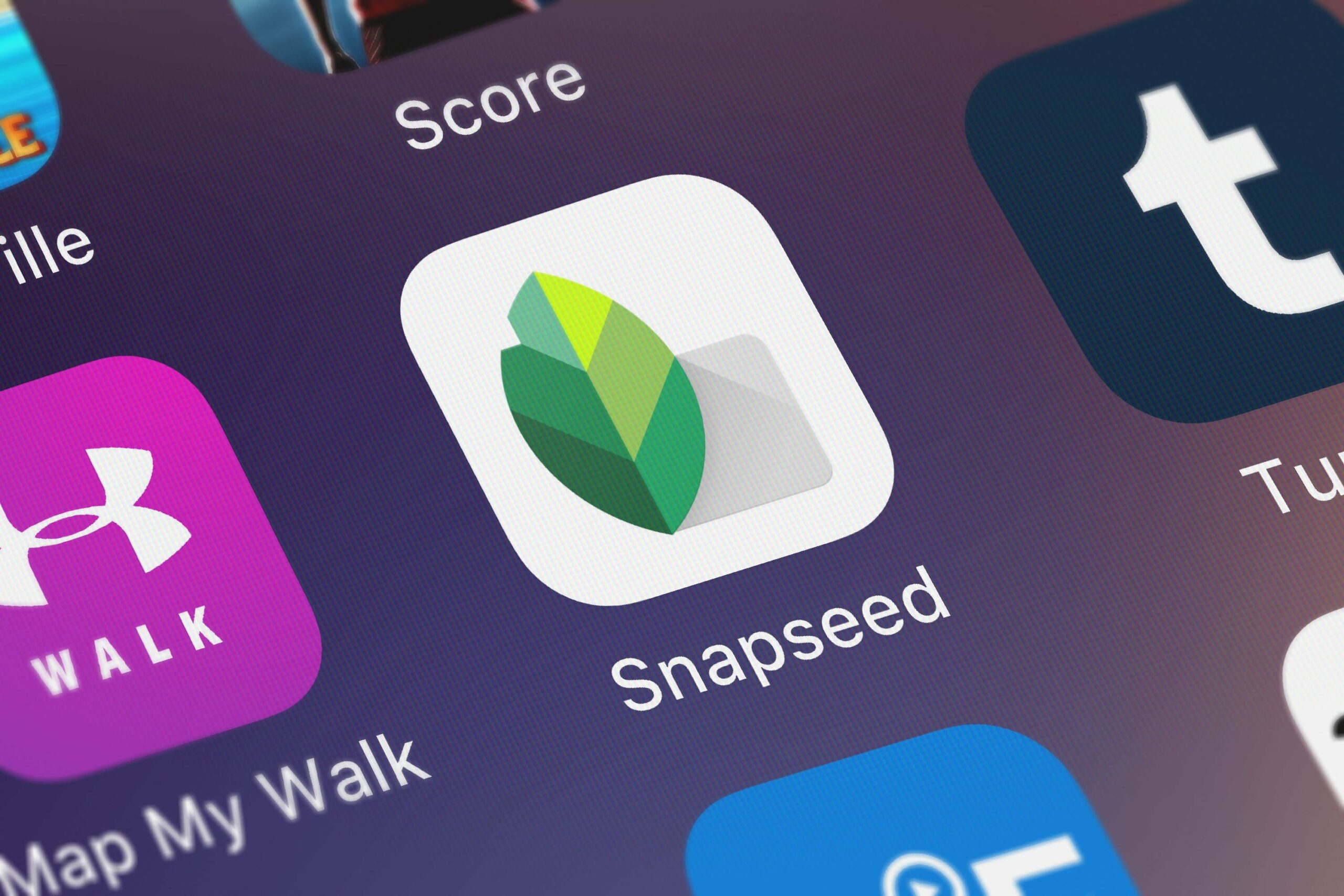
Google acquired the excellent photo editor Snapseed back in 2012—not long after Apple had crowned it one of its apps of the year—and despite having plenty to offer and being completely free to use, it remains one of Google’s lesser-known apps. That might be about to change. Snapseed’s latest update for iOS, version 3.15.0, comes with a full camera app inside—and there’s a case to be made that it’s better than Apple’s default Camera app. It certainly offers more in the way of manual shooting controls, with the added benefit of an entire integrated suite of editing features.
Using Snapseed’s built-in camera on iPhone
Once you’ve installed or updated Snapseed to the latest version, you’ll see the new camera icon up in the top right corner. While you can start your session by opening up an existing image as always, you can also opt to capture a new one by tapping here:
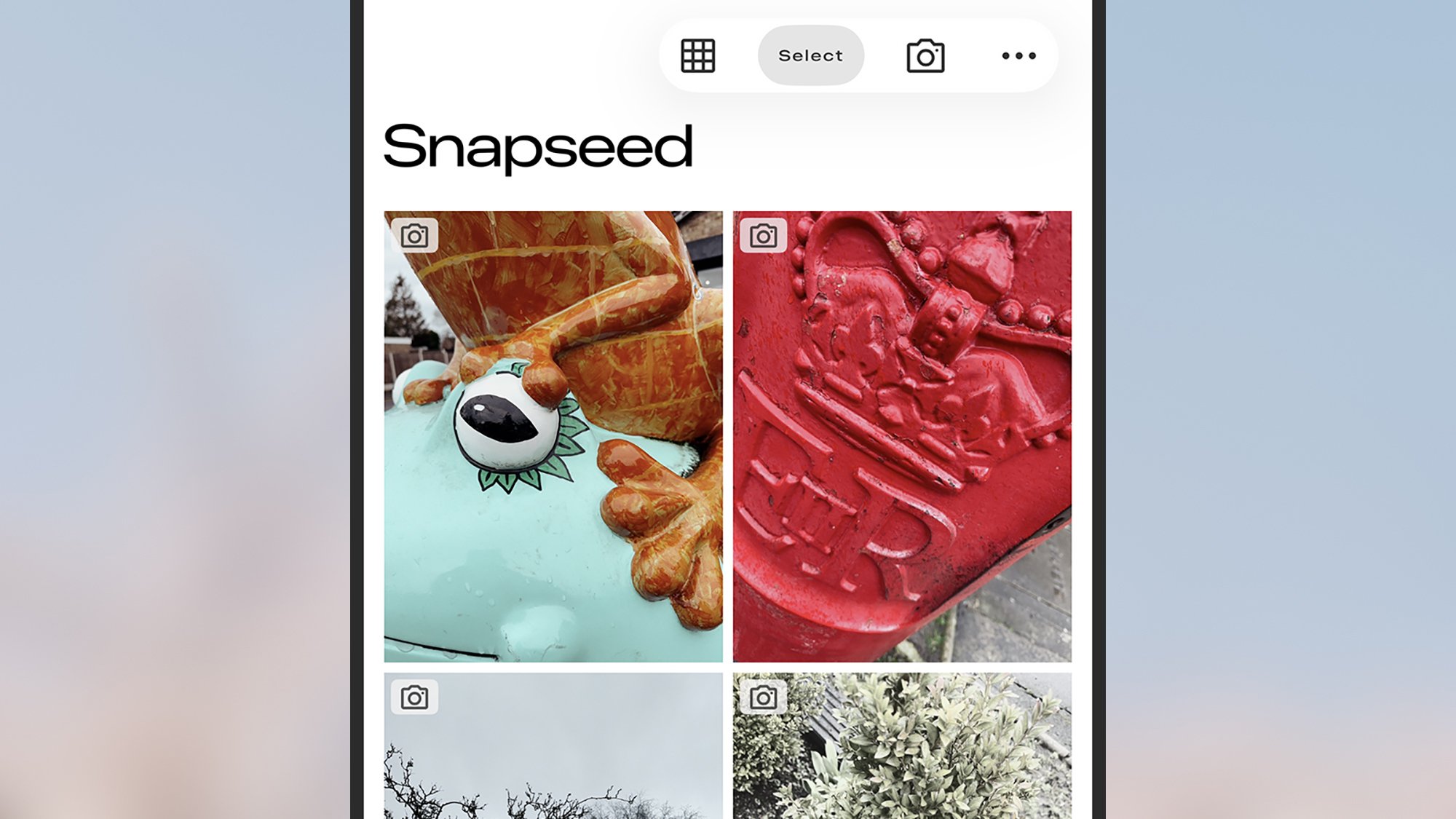
Look out for the new camera button in Snapseed.
Credit: Lifehacker
If you want an easier way to launch the camera, you can add it to the Lock Screen: Press and hold on your iPhone’s display when it’s locked, tap “Customize,” then pick a shortcut spot and choose “Camera” under “Snapseed.” There’s also a Control Center shortcut you can make use of, if you prefer.
Once you’ve swiped through the introductory spiel and given Snapseed access to your iPhone’s camera, you’ll need to pick one of the classic camera film presets to get started, though you can adjust the look of your shots afterwards. There are 11 different film simulations available—emulating film from Kodak, Fuji, Agfa, Polaroid, and Technicolor—and each one gives you slightly different variations in terms of color, contrast, texture, and tone. You can tap the film selector at the bottom of the camera interface (designed to look like a rewind button) to change at any time.
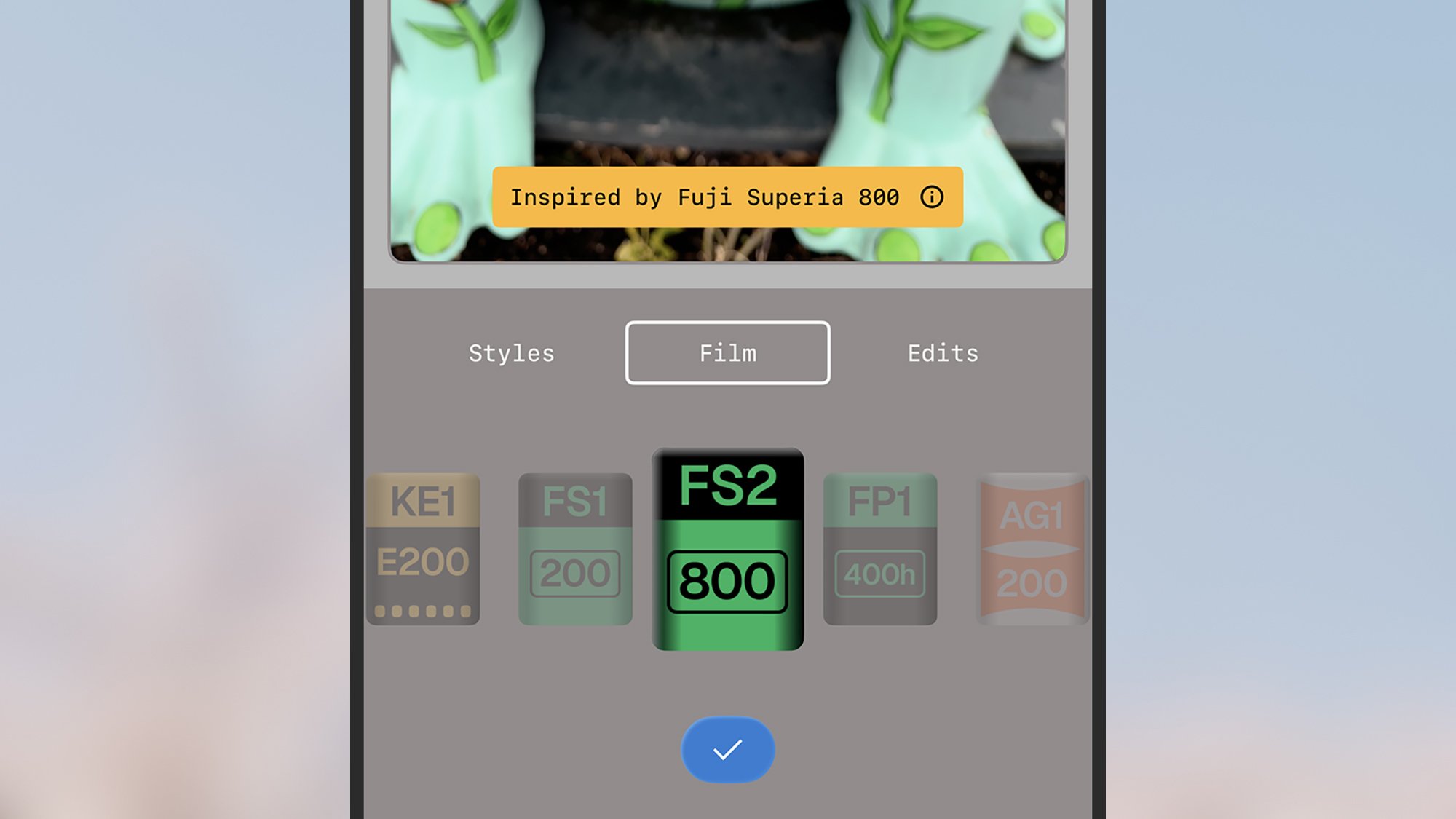
You’ve got some classic film styles to choose from.
Credit: Lifehacker
Your saved looks and edits are also included in the film selector, and can be used as preset filters for the images you’re capturing. In the main image editor, after you’ve applied whatever adjustments you want to a photo, you can tap Looks > Add look to save it and access it through the camera.
Up in the top left corner of the camera interface, you’ll find a Pro toggle switch, which gives you some controls the default iPhone camera does not. You get three new settings on screen, for ISO, shutter speed, and focus, and you can change any of them by selecting a setting and using the dial underneath. You’ve also got controls for flash (left) and zoom (right). Besides the big shutter button, you have a camera swap button (lower right), a button for going back to your photo library (lower left), and a camera capture screen theme button (upper right). Tap on this to pick a different color scheme for the screen.
Pro controls can be called up in a couple of taps.
Credit: Lifehacker
You’re not stuck with the look of any of the photos you shoot through Snapseed: All of the changes applied by your film preset, from exposure to curves, can be changed later on. Select your picture from the main library screen, then use the Faves and Tools tabs to make changes.
Most filters and effects are applied by adjusting a slider underneath your image. The layers button (two squares) at the top gives you access to the current editing stack, and there’s also an undo button to the left. When you’re happy with what you’ve made, you’re able to save over your existing image or make a copy.
It’s an interesting new addition to the selection of superb third-party camera apps available for the iPhone, and yet another alternative to the Apple default. Meanwhile, Android users are within their rights to feel left out by all this: Snapseed for Android hasn’t been updated since May 2024, and lacks both the camera feature and the most recent editing interface revamp that are now available on iPhones.
The Download Newsletter
Never miss a tech story

Jake Peterson
Get the latest tech news, reviews, and advice from Jake and the team.
The Download NewsletterNever miss a tech story.
Get the latest tech news, reviews, and advice from Jake and the team.